


Steps
-
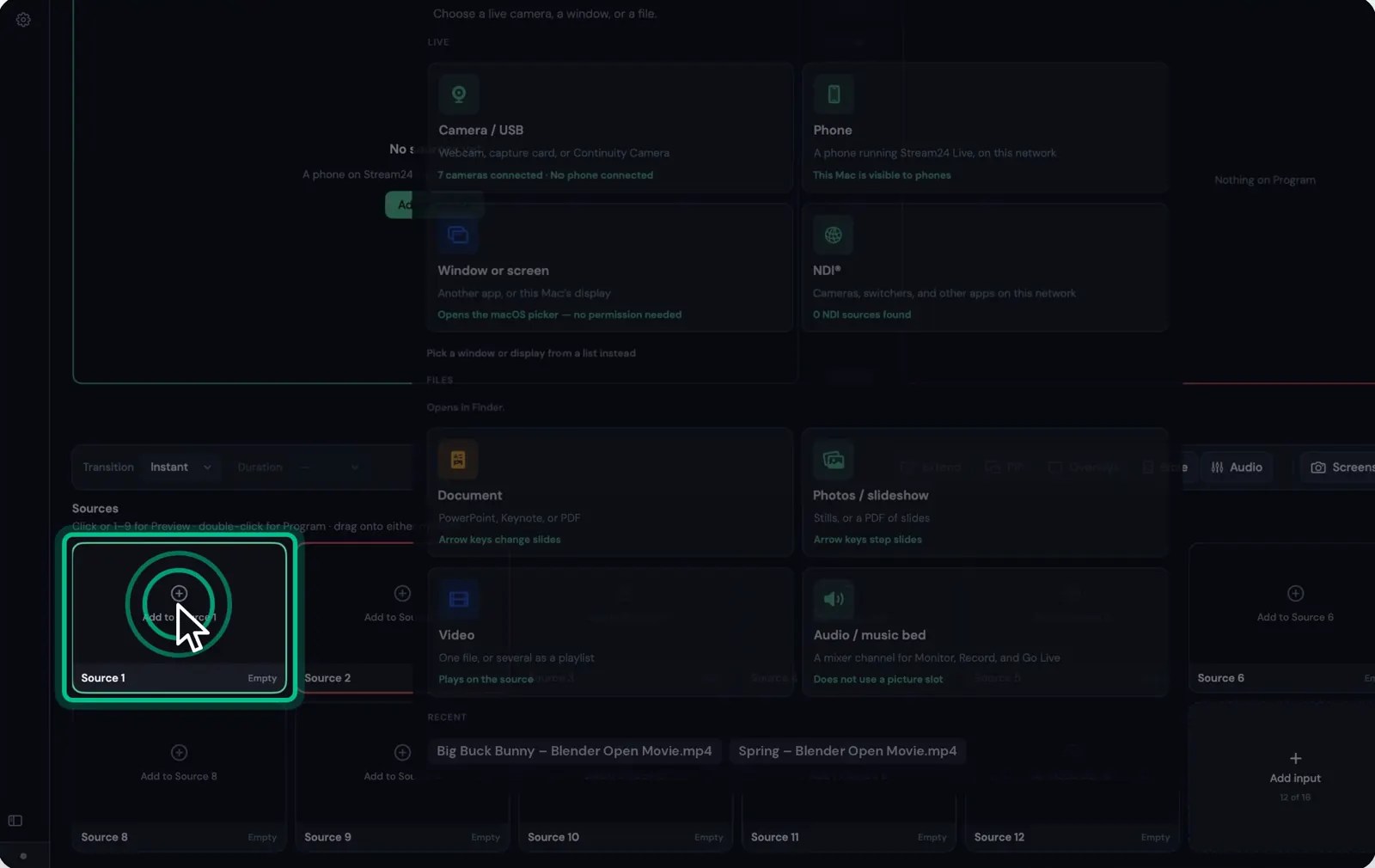
Step 1: Click an empty source tile
Your sources sit under Preview and Program. Click an empty tile.
-
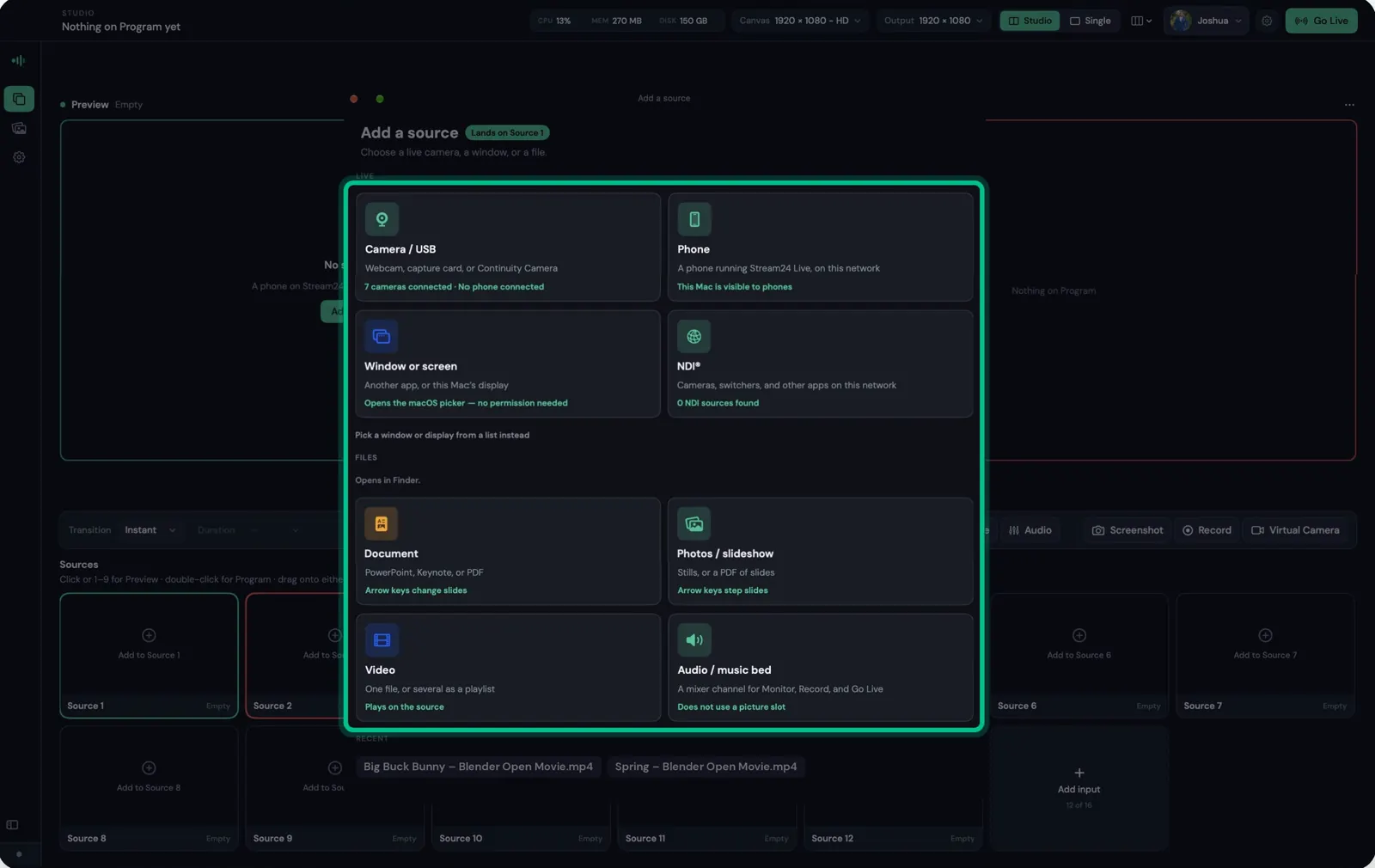
Step 2: Pick what to add
Choose a camera or capture card, a phone in Camera Mode, a window or screen, NDI, slides, video, or an audio bed.
-
Step 3: Allow access if macOS asks
The first camera, microphone or screen you add makes macOS ask for permission. Click Allow.
-
Step 4: Check it in Preview
The source plays on its tile and loads into Preview. New sources start muted; unmute them in the Audio panel.
Watch this step0:22
Good to know
- NDI sources are part of Starter and Pro.
- Phones join over the same Wi-Fi as the Mac, using the Stream24 Live app in Camera Mode.
Messages you might see
Add a source before recording.