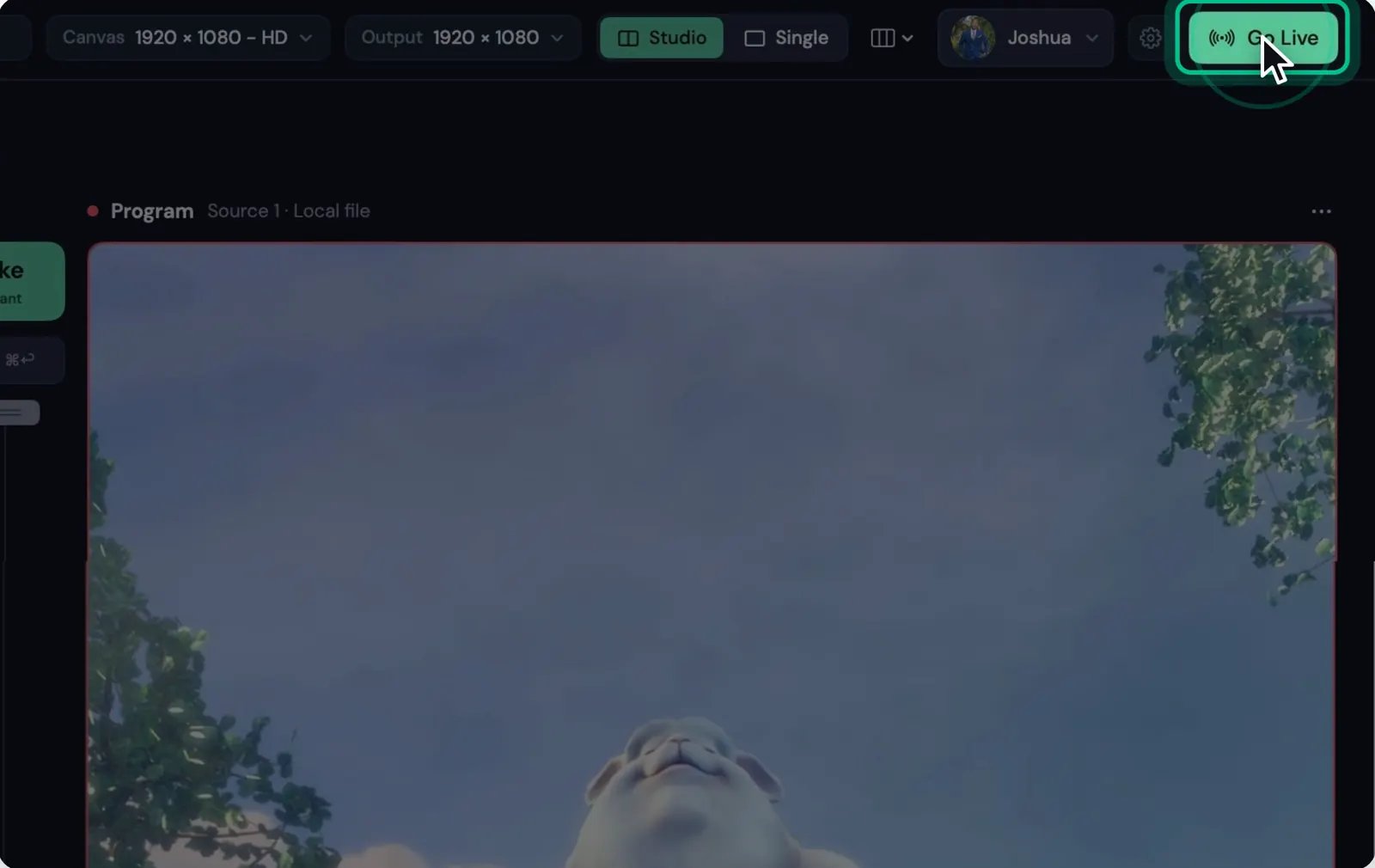
Send Studio's Program to every channel in your Stream24 account with one upload. Turn destinations on, check the stream settings and watch the connection while live.
1 min read·Updated
Steps
1
Step 1: Click Go Live
Click Go Live in Studio's header. The window lists the destinations in your Stream24 account.
Turn on each one you want. If a platform isn't connected yet, connect it in the dashboard; it appears here as soon as it is.
3
Step 3: Check the stream settings
Studio sends up to your plan's limit for video and 128 kbps audio. Leave Adjust to the connection on: it lowers the bitrate when your upload can't keep up, so the stream stays close to live, and raises it again when it can.
4
Step 4: Start
Studio shows Connecting to destinations…, then Streaming to the number of destinations you chose. Program is what goes out.
5
Step 5: End live
Click End live and confirm. That stops the live stream on every destination.
Good to know
Studio sends one stream. Stream24's servers prepare a copy for each destination, so your upload carries one stream however many platforms you use.
Messages you might see
Add a destination at app.stream24.io, then try again.
Turn on at least one destination, then try again.
Studio can't reach Stream24. Check your internet connection, then try again.
Your Stream24 plan isn't active. Renew it at app.stream24.io, then try again.
Too many Go Live attempts. Wait a minute, then try again.
Studio lost the connection to Stream24 and is reconnecting.