


Steps
-
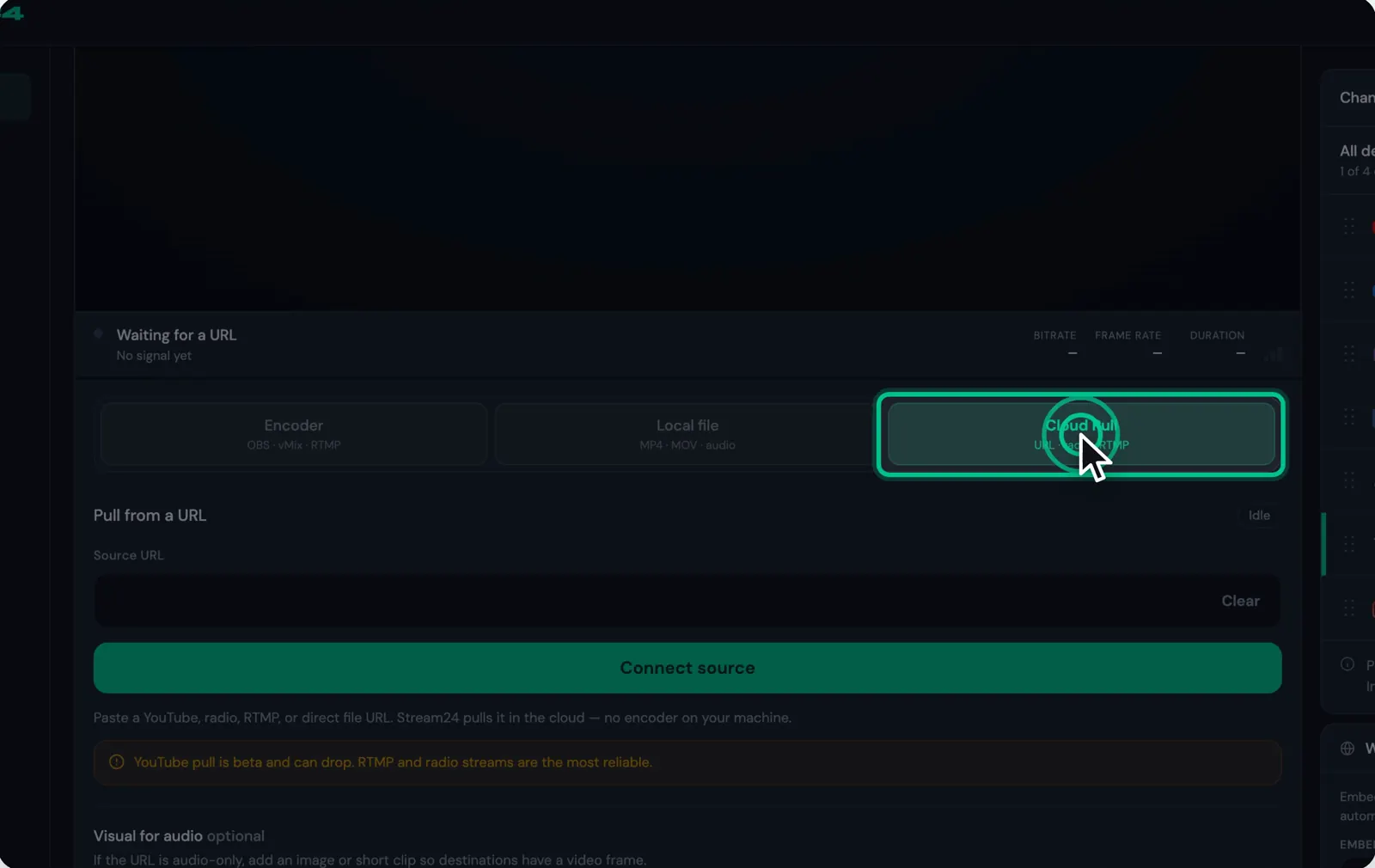
Step 1: Choose Cloud Pull
In the Stream24 web app, choose Cloud Pull (URL · radio · RTMP).
-
Step 3: Add a picture for audio-only links
A radio or other audio-only stream needs a thumbnail to show while it plays. Upload one with the image upload button before you connect.
-
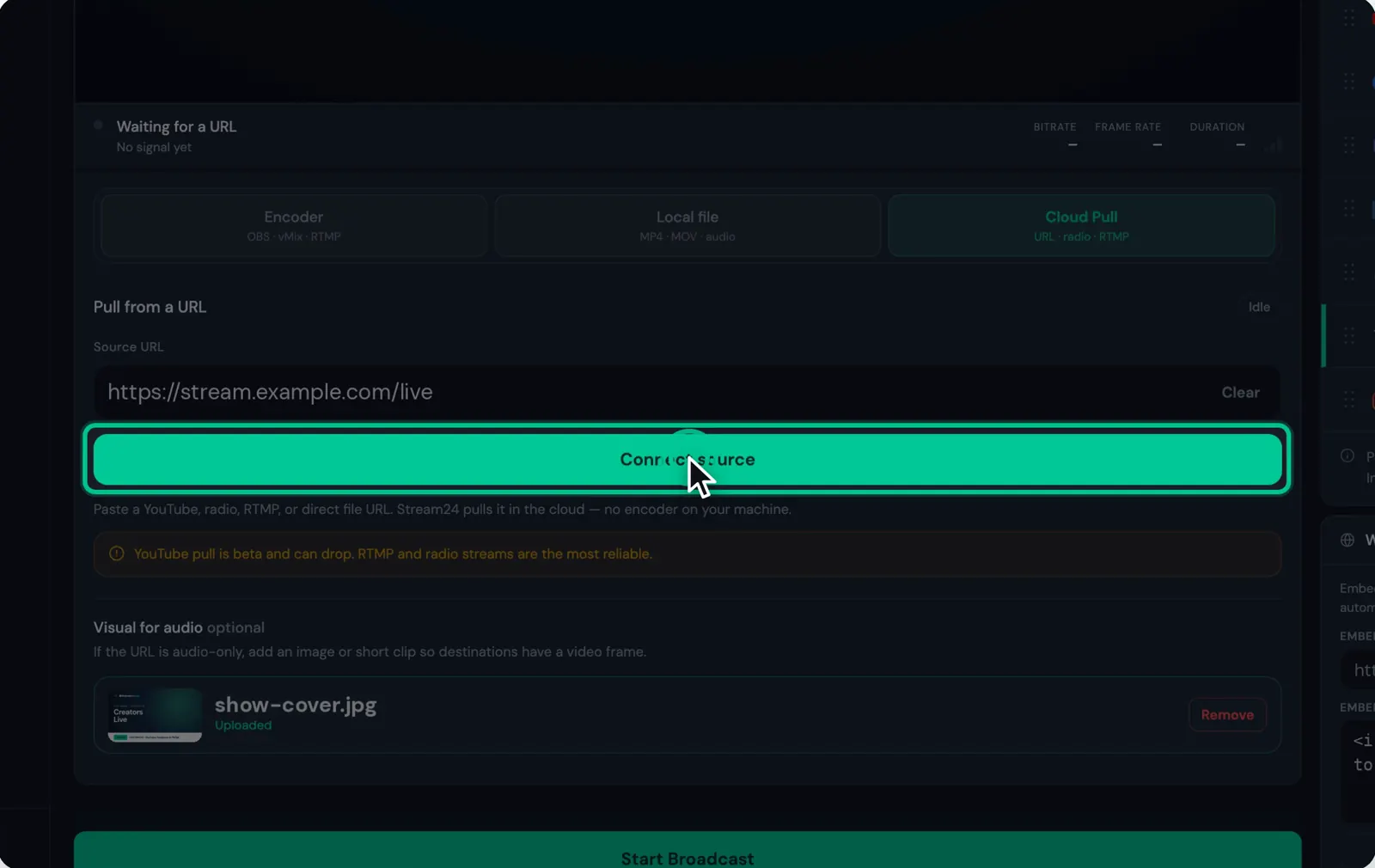
Step 4: Click Connect source
Stream24 pulls the link in the cloud. When it shows Cloud source connected, you are ready.
-
Step 5: Switch on your channels and click Start Broadcast
Turn on the channels you want and click Start Broadcast. Disconnect stops pulling the link.
Watch this step0:35
Messages you might see
Cloud Pull is available on Pro plan only. Upgrade at app.stream24.io/subscribe
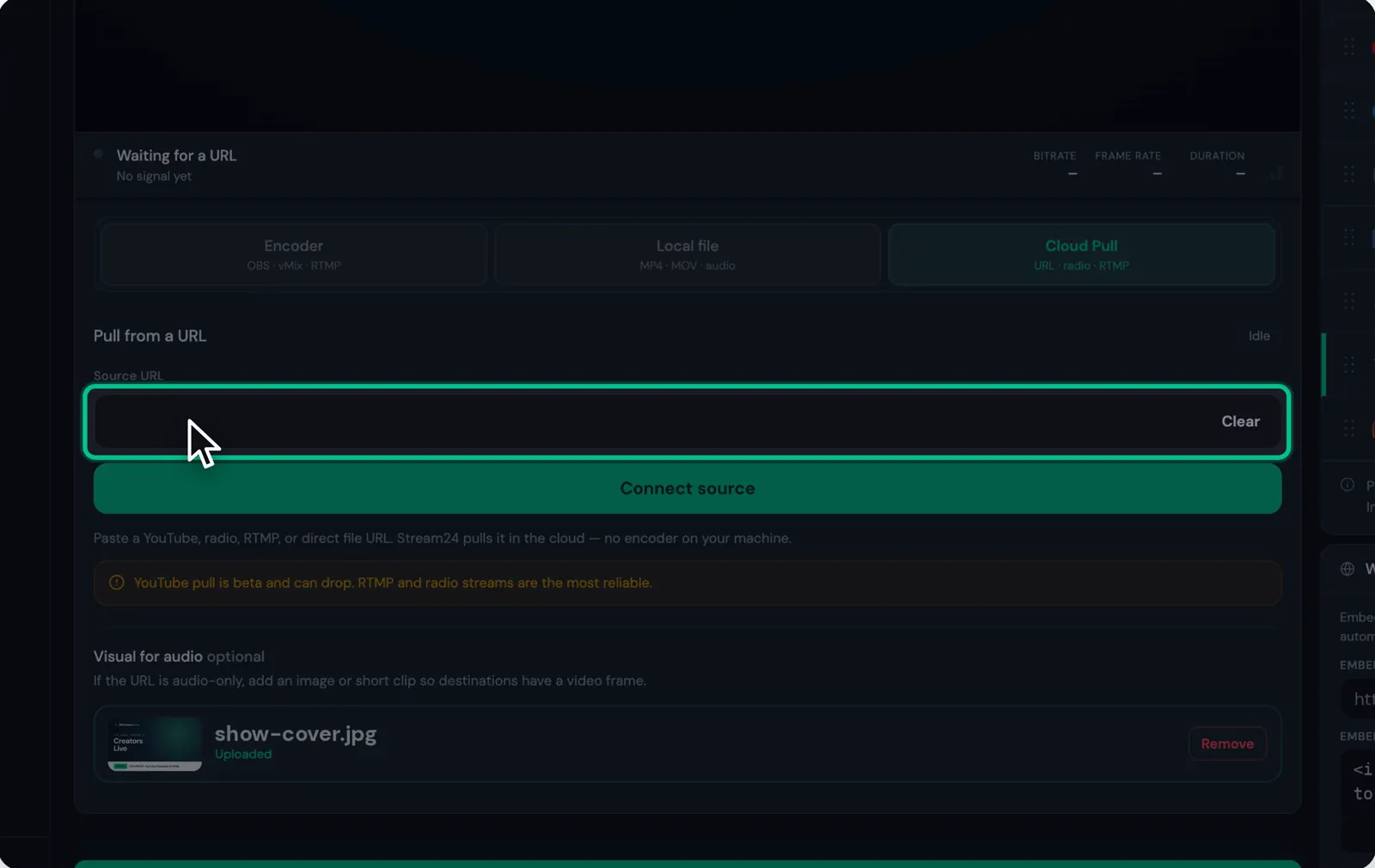
Please paste a valid video URL
Audio streams require a thumbnail. Please upload one using the image upload button before connecting.
Cloud source is connecting... Please wait and try Start Broadcast
Failed to connect cloud source