Skip to content
Stream24

Every Stream24 plan now includes Studio, OmniDownload and Share for Mac — at no extra cost.

See what's new

GuideMultistreaming

Stream a pre-recorded video file

Upload a video or audio file and Stream24 plays it out live to every channel you switch on, with no encoder running. File types, size limits and playlists explained.

1 min read Updated

Steps

  1. Step 1: Choose Local file

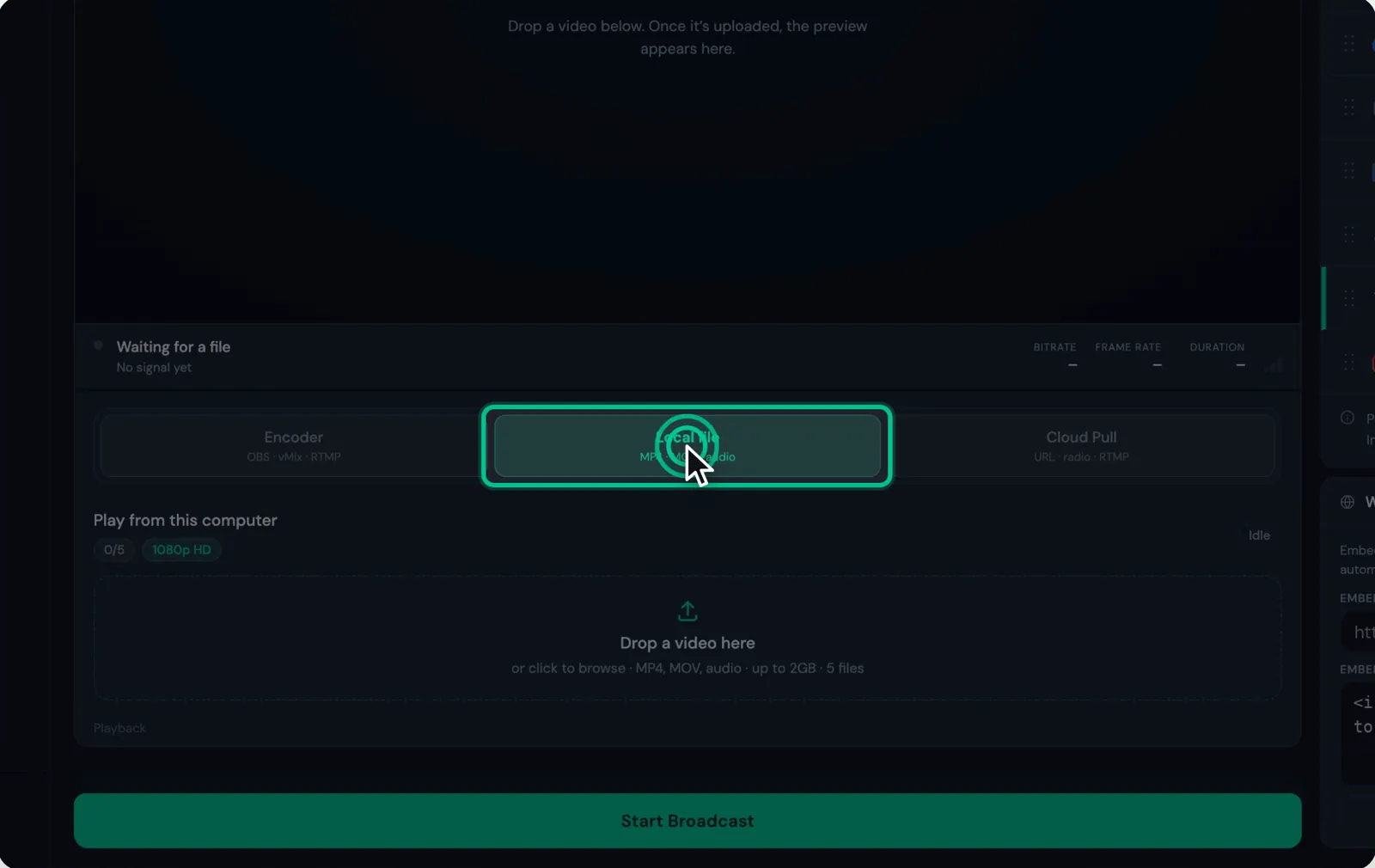
    In the Stream24 web app, choose Local file (MP4 · MOV · audio).

    The Local file source option selected
    Watch this step0:13
  2. Step 2: Add your file

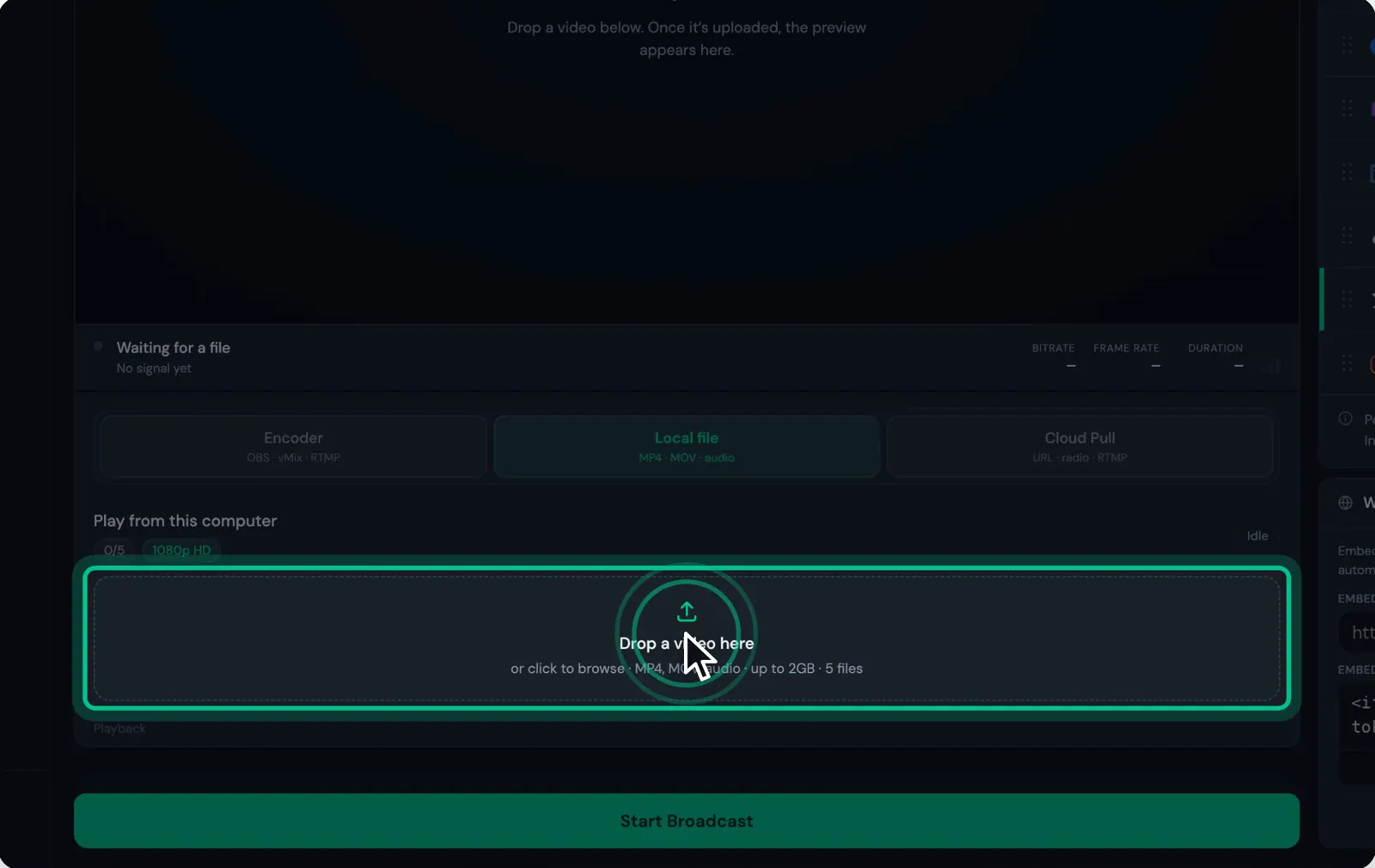
    Drop the file in or click Add files. Stream24 takes MP4, MOV, MKV, AVI, M4V and WebM video, and MP3, AAC, WAV, FLAC, OGG and M4A audio, up to 2 GB each.

    The file drop area highlighted
    Watch this step0:18
  3. Step 3: Choose how it plays

    Pick Once, Loop one or Loop all. With several files, Prev and Next move through the playlist. Replace files swaps them out.

  4. Step 4: Switch on your channels and click Start Broadcast

    Turn on the channels you want and click Start Broadcast. The file plays live on every channel at once.

    Watch this step0:31

Good to know

  • Starter streams one file at a time. Pro plays a playlist of up to 5 files.
Messages you might see
  • Local File streaming requires a Starter or Pro plan. Upgrade to continue.
  • Each file must be 2 GB or smaller.
  • File too large. Maximum 2 GB.
  • Unsupported file type
  • Your plan allows up to 1 video
  • Too many files. Check your plan limits.

If this didn’t work

Still stuck?

Tell us what you are trying to do and we will help. We usually reply within one business day.