


Steps
-
Step 1: Open Encoder
In the Stream24 web app, choose Encoder. Your stream key is under the RTMP server.
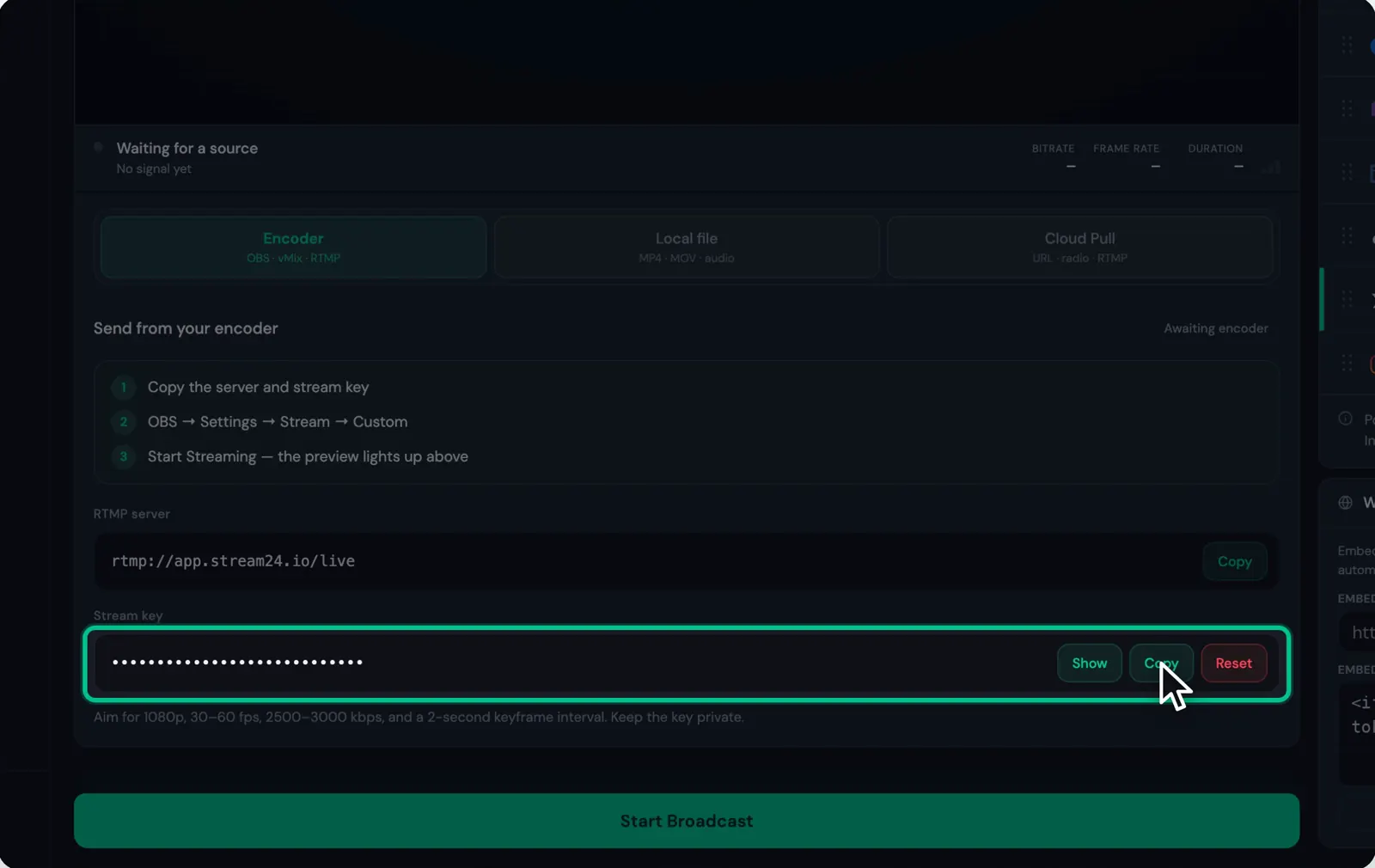
-
Step 2: Click Reset
Stream24 asks you to confirm: your current key is invalidated, and any encoder or app using it stops working immediately. Click Yes, Reset Key.
-
Step 3: Copy the new key
You see Stream key reset successfully. Update your encoder with the new key. Click Copy next to the new key.
-
Step 4: Paste it into your encoder
In OBS, open Settings, then Stream, and replace the Stream Key. Do the same in vMix or any other device that streams to Stream24.
Good to know
- Resetting only changes the key your encoder uses to reach Stream24. The channels you connected stay as they are.
Messages you might see
Stream key reset successfully. Update your encoder with the new key.
Failed to reset stream key. Please try again.