Skip to content
Stream24

Every Stream24 plan now includes Studio, OmniDownload and Share for Mac — at no extra cost.

See what's new

GuideOmniDownload

Install OmniDownload and sign in

Download OmniDownload for Mac, move it to Applications and sign in with your Stream24 account. What it needs, and how updates install.

1 min read Updated

Steps

  1. Step 1: Download OmniDownload

    Get the disk image from stream24.io/omnidownload.

  2. Step 2: Move it to Applications

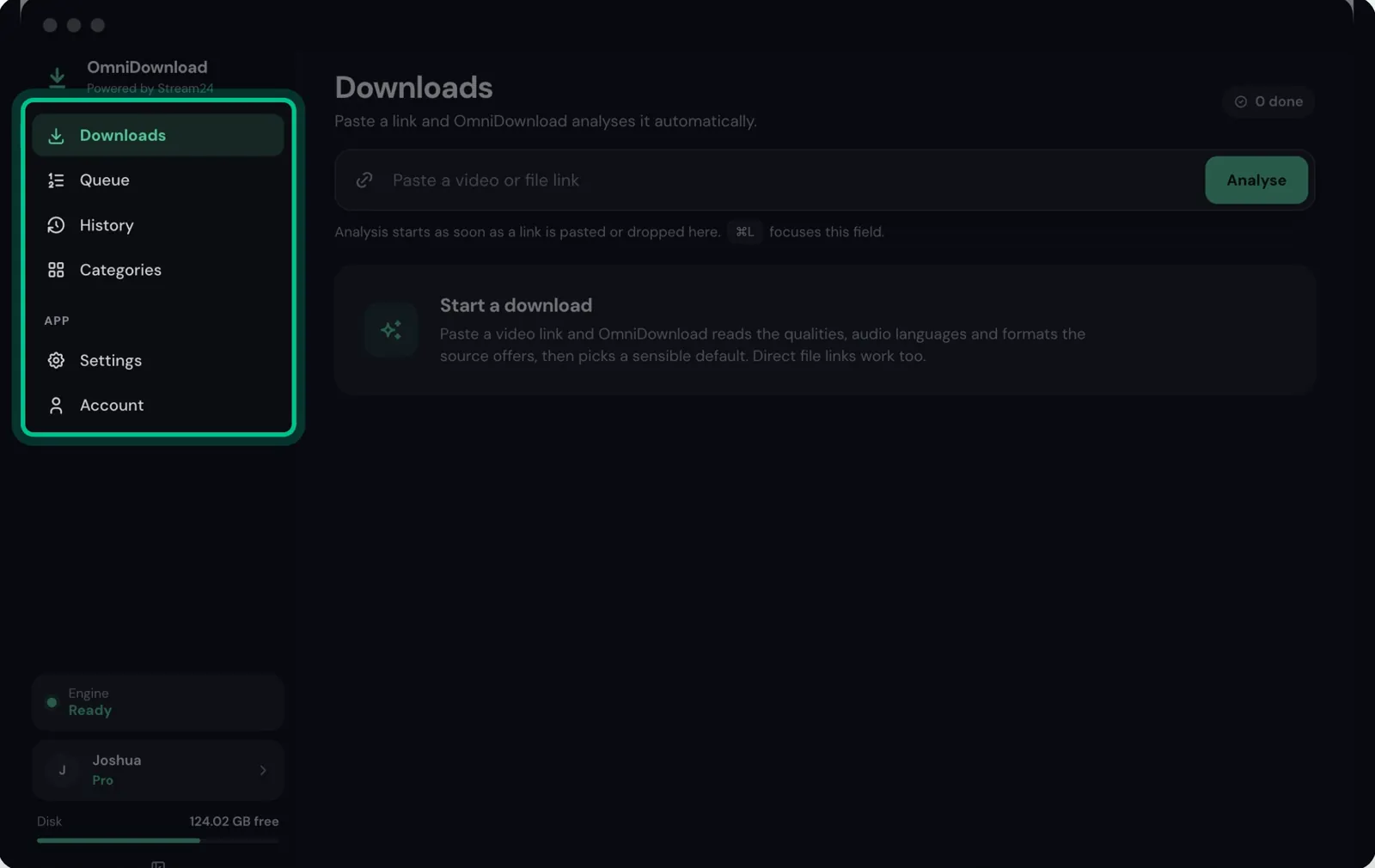
    Open the disk image, drag OmniDownload into Applications and open it from there.

    OmniDownload's Downloads view with Queue, History and Categories in the sidebar
    Watch this step0:07
  3. Step 3: Sign in

    Sign in with Google or with your email, using your Stream24 account. You need to sign in to download videos; direct file links work without one.

Good to know

  • Updates download in the background and are checked as signed by Stream24. They install when you quit OmniDownload, or straight away if you choose to restart.
  • OmniDownload works on your Mac. It contacts Stream24 only to sign in and check your plan; the links and files you download are not sent.
Messages you might see
  • Sign in to download videos.
  • Google sign-in could not start
  • Could not send the sign-in email
  • Downloaded and verified. Restart now, or it installs when you quit OmniDownload.

If this didn’t work

Still stuck?

Tell us what you are trying to do and we will help. We usually reply within one business day.